Chapter 1 -- Getting Started
Overview
Ndevor terminal management platform is to solve the application management problems encountered by enterprises in the implementation of mobile terminal application system. The platform mainly provides services such as terminal system management, terminal software management, and terminal message management.
Software Environment
- Operating system: Windows Server 2008 or Windows 7 above;
- Web application server: tomcat 5.0 and above;
- Database: Mysql 5.0 and above;
- Java environment: JDK 1.6 and above.
Login Management System
- Login the Ndevor management system from the PC (https://ndevor.net/). The login interface is as follows:

- Input the user name, password, and verification code to enter the main interface of the management system, as shown in the below figure:

Install Ndevor App
Please contact Newland Auto-ID Tech. Co., Ltd. to obtain the latest Ndevor app software and installation support, or operate with pre-installed Ndevor equipment. After installation of Ndevor, please see the following figure:

Connect Management System with Terminal Application
To achieve remote control of terminal applications, the management system must be connected and bound to the terminal. During the connection process, ensure that the terminal is connected to the network, or in the same LAN environment as the management system. The detailed steps are as follows:
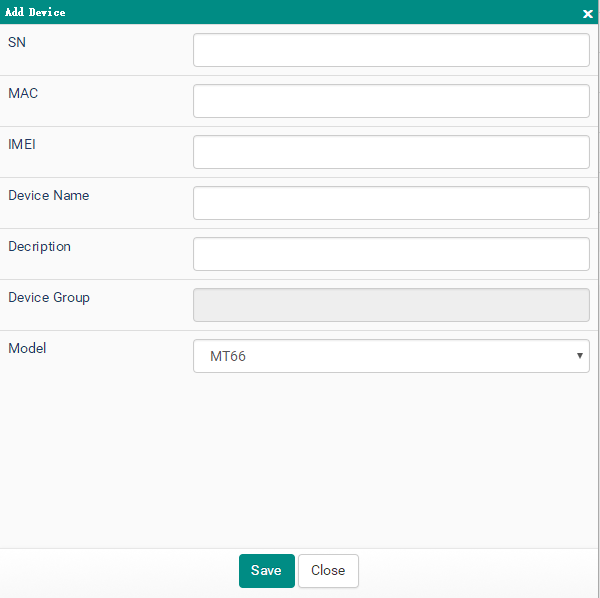
- Login the management system per steps mentioned previously, then click "Device Group Management"-> "Add", and the "Add Device Group" window pops up, and input the corresponding information. Click "Save."

- Click the terminal application MDM, and input the corresponding terminal group number on the main interface to enter the following interface (it means that the terminal device is successfully connected to the management system)
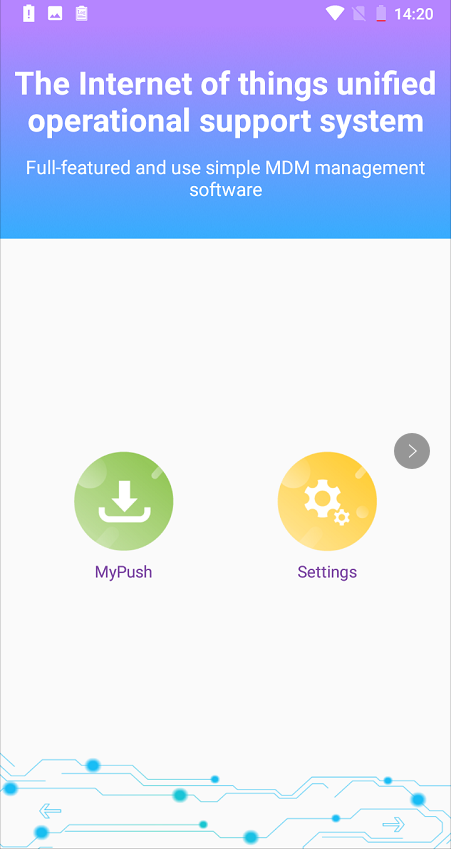
- After the terminal device is successfully connected to the management system, the terminal application can remotely receive programs, documents, messages, etc. sent by the management system, and respond to other setting instructions sent by the management system.
Feature List of Ndevor Terminal Management Platform

Chapter 2 -- Ndevor Control Panel Function Introduction
Login the Ndevor management system interface, and you can view statistics such as the total number of terminals, the number of terminal groups, the terminal model, and the number of tasks sent. On the sidebar, it includes related setting management of "System Administrator”, “Basic Data", "Device", "Configuration", "Group Policy ","Application ","Document ","Network ","Boot Animation Background", and "System Management".
System Administrator
The system administrator is mainly used to modify the login password and change personal information.
Go to the system management homepage, click "System Administrator" in the sidebar to enter the "Personal Information Interface" to modify the information, and then click "Save".
Basic Data
Device Basic Data Management: View, add, delete, or import basic data.
Device
Device Management
Device management can check whether all the terminal devices controlled by this system are online and review their model, IP address, and login time. And it can also quickly locate the device information through "check". By the use of "Device Management", you can also realize the function like "Batch Import or Export", "Delete", "Send Message", "Lock the device", " Send Commands", "Edit", "GPS Tracking", and "Screenshot", etc.
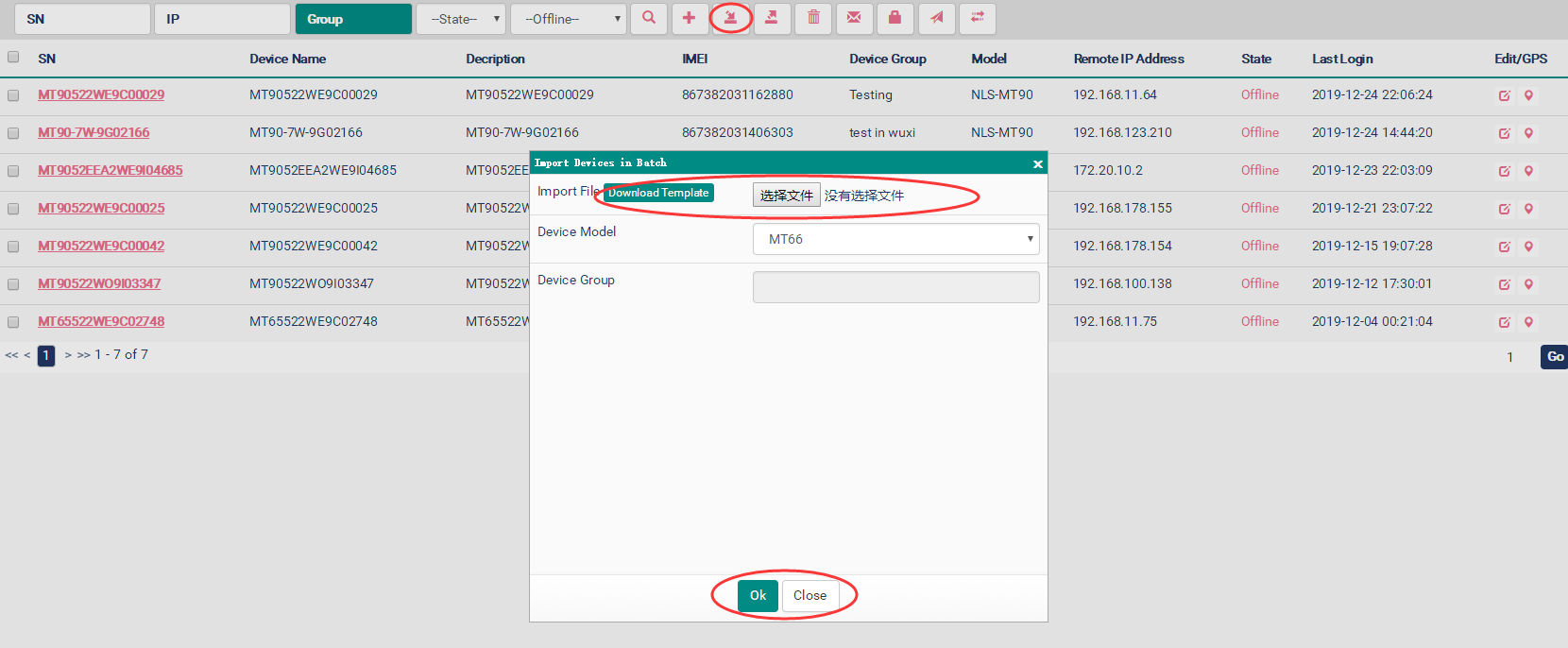
- Import: Batch import to terminal devices that have been remotely controlled. Click "Import" and it will pop up the " Import Devices in Batch " window, then select the terminal group and import file, and click "Save" to import data. Note: The import file must use the template specified by the system.
- Export: Export all terminal device information in batches. Click "Export" and select the save path of the file to export the data.
- Delete: Delete the selected terminal device information. Click "Delete", then "OK" to complete the deletion.
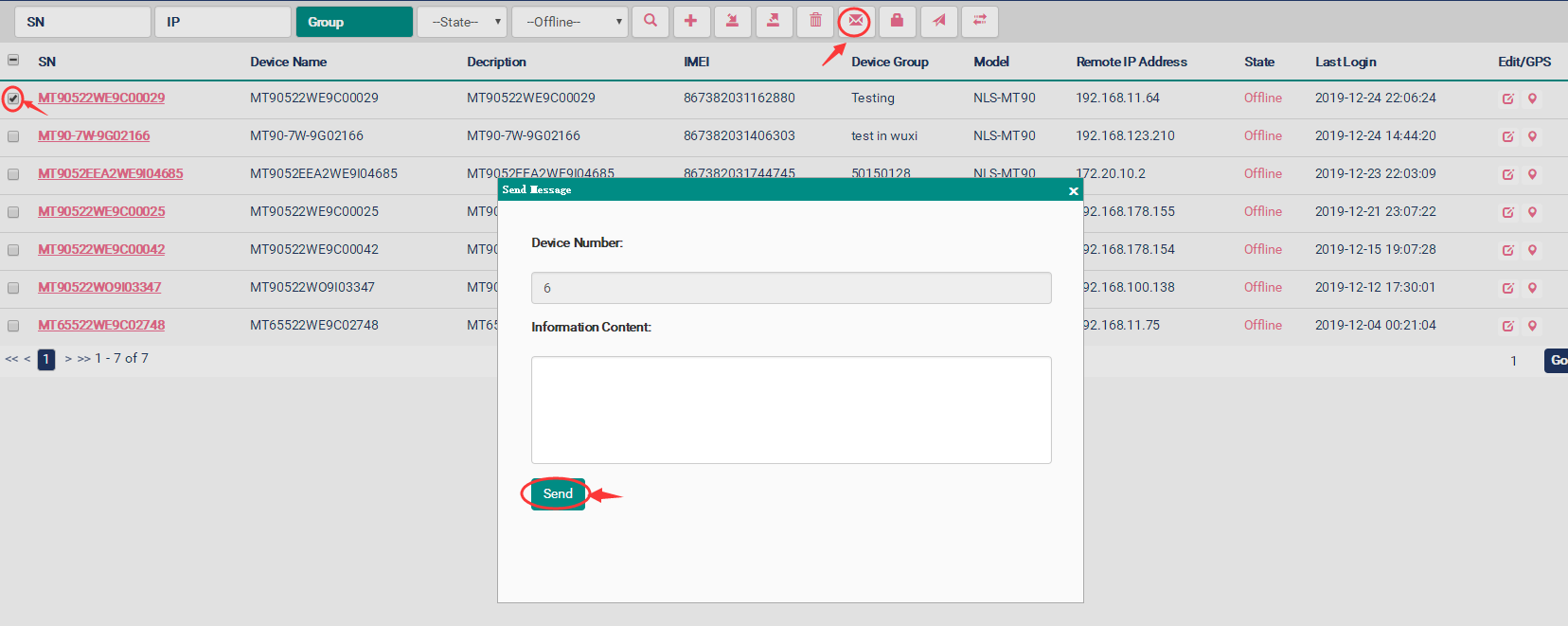
- Message: The system sends a message, and the terminal device can receive the message after connecting to the internet. Check the terminal device -> click "Message" and input the information content-> click "Send" to complete the operation. Note: The terminal device must be connected to the network, and the information can be viewed through the MDM application "Sending Management"-> "Messages". For details, please refer to the sending management in chapter "MDM Terminal Application Introduction".
- Lock Device: The system locks the terminal device remotely. You must enter the unlock password set by the system to use the terminal device. Check the terminal device, click "Lock Device", enter the lock password, and click "Send" to remotely lock the device.

- Command: The system sends commands to device remotely, which can make device perform actions like "System Restart", "Factory Reset", "Return to Newland Desktop Manager (that is, enter user mode) ", "Return to Native Android Desktop", "Enable Newland Desktop Manager on Startup (that is, directly enter user mode when booting) ", " Disable Newland Desktop Manager on Startup". Check the terminal device, click "Command", select the control command type from the drop-down list, and click "Send" to remote control successfully.
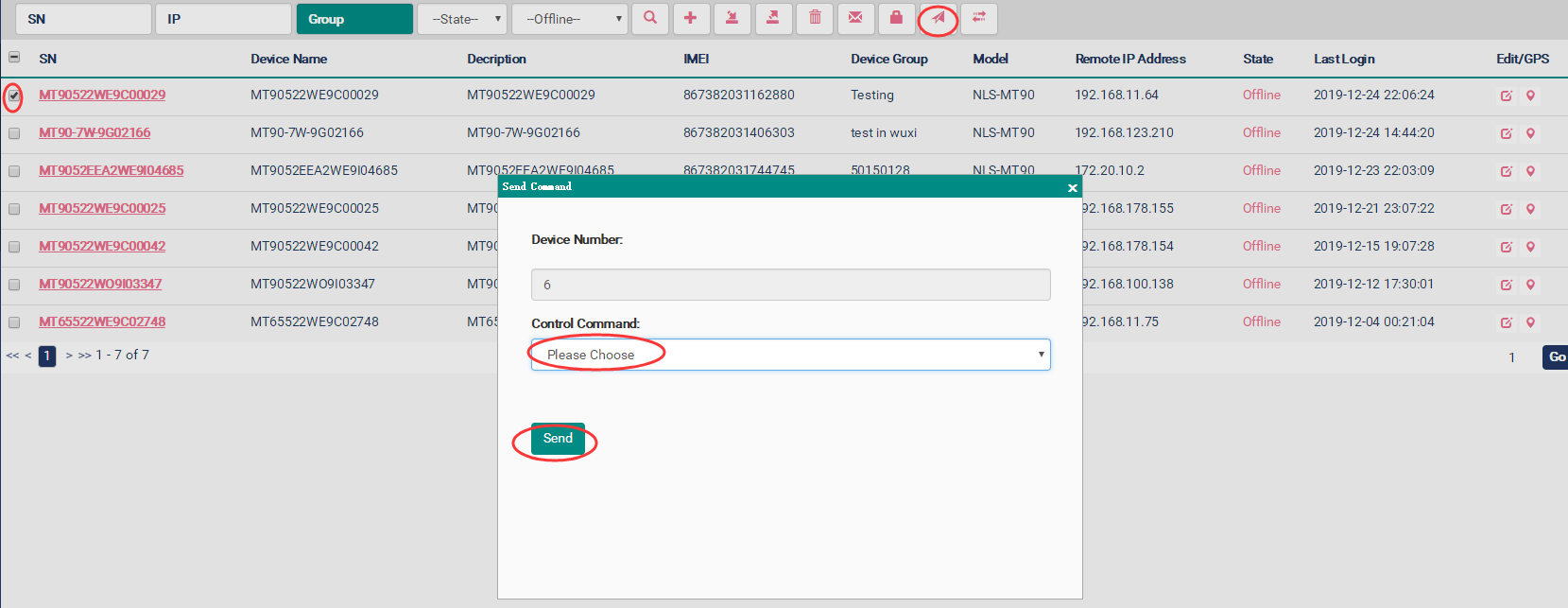
- Edit: Edit and change information of the terminal device, such as device group switch, device name, etc. Click "Edit" to change the corresponding device information and tap "Save" to confirm the action.

- GPS: Click the GPS to get the device positioning information.
Device group management
For device group management, please refer to the "Import", "Export", "Edit", and "Delete" sections of the device management.Device Model Management
Unified device management such as editing and deleting by device model category.Device Battery Level
Remotely check the real-time status of the device battery and send messages to remind of low power.
Device Turn On/Off Information
Remotely check the device status (turn on/off and time node).
Profiles
Configuration Profiles
Ths configuration profiles can be used to view and configure the scanning settings, device settings, and keyboard mappings of the terminal device.

App Profiles
The App Profiles can deliver one or more applications selected by the user to the terminal device, or uninstall applications that are not in the sending list with one click.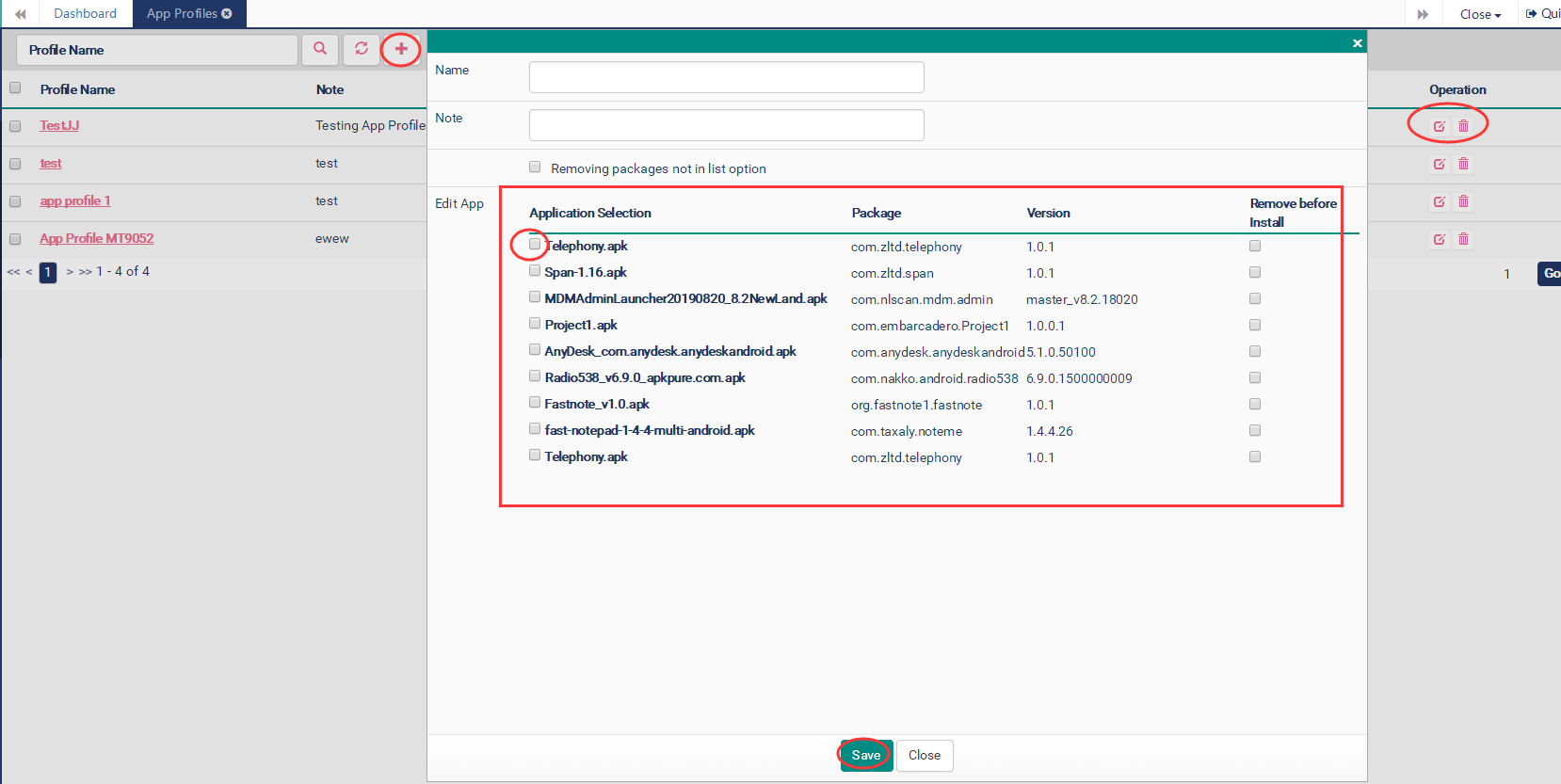
Desktop Profiles
The desktop profiles can set one or more selected applications to be displayed on the desktop. Unselected applications will not be displayed on the terminal device.
White Profiles
The white profiles can set the application installation permissions for the terminal device users, which are: allow installation of all third-party applications, prohibit the installation of all third-party applications, allow installation of specified applications, or allow installation of applications with specific signatures.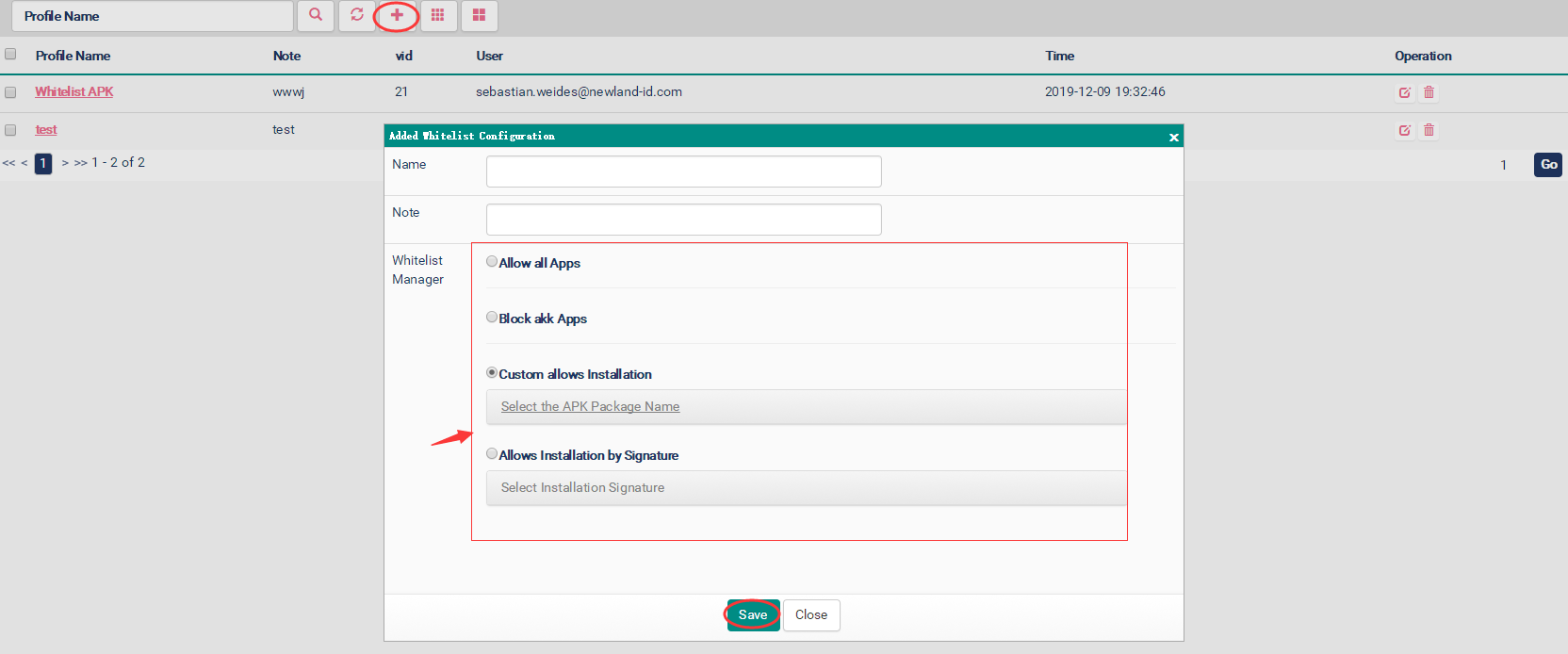
Document Profiles
Document profiles can set a list of files that can be sent.
Network Profiles
Network profiles can set WIFI connection and display permissions for device users.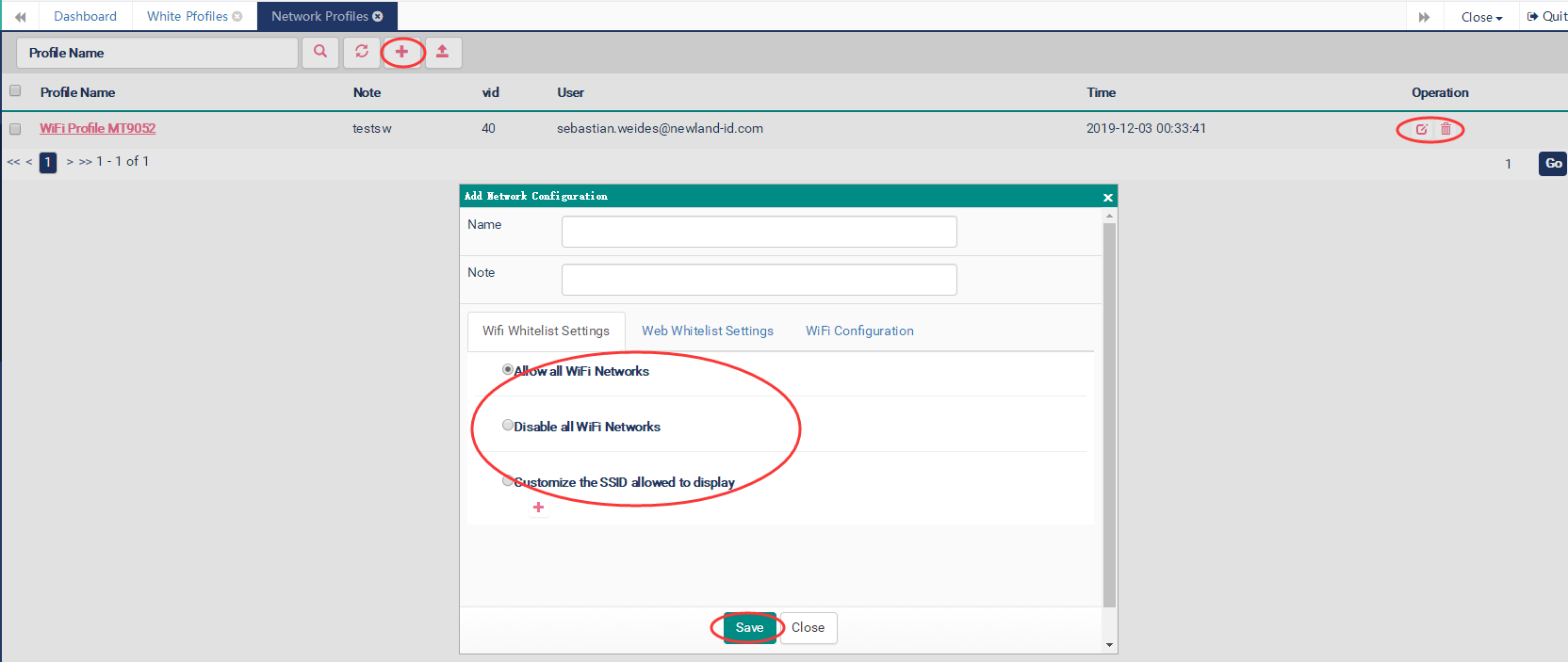
Group Policy
Policy
Policy is the integration of all the basic settings of terminal devices. Here, users can integrate "App Profile", "Desktop Manager Profile", "Whitelist Profile", "Network Profile" and other necessary settings for their terminal into one policy, and then select this policy to send all the configurations together.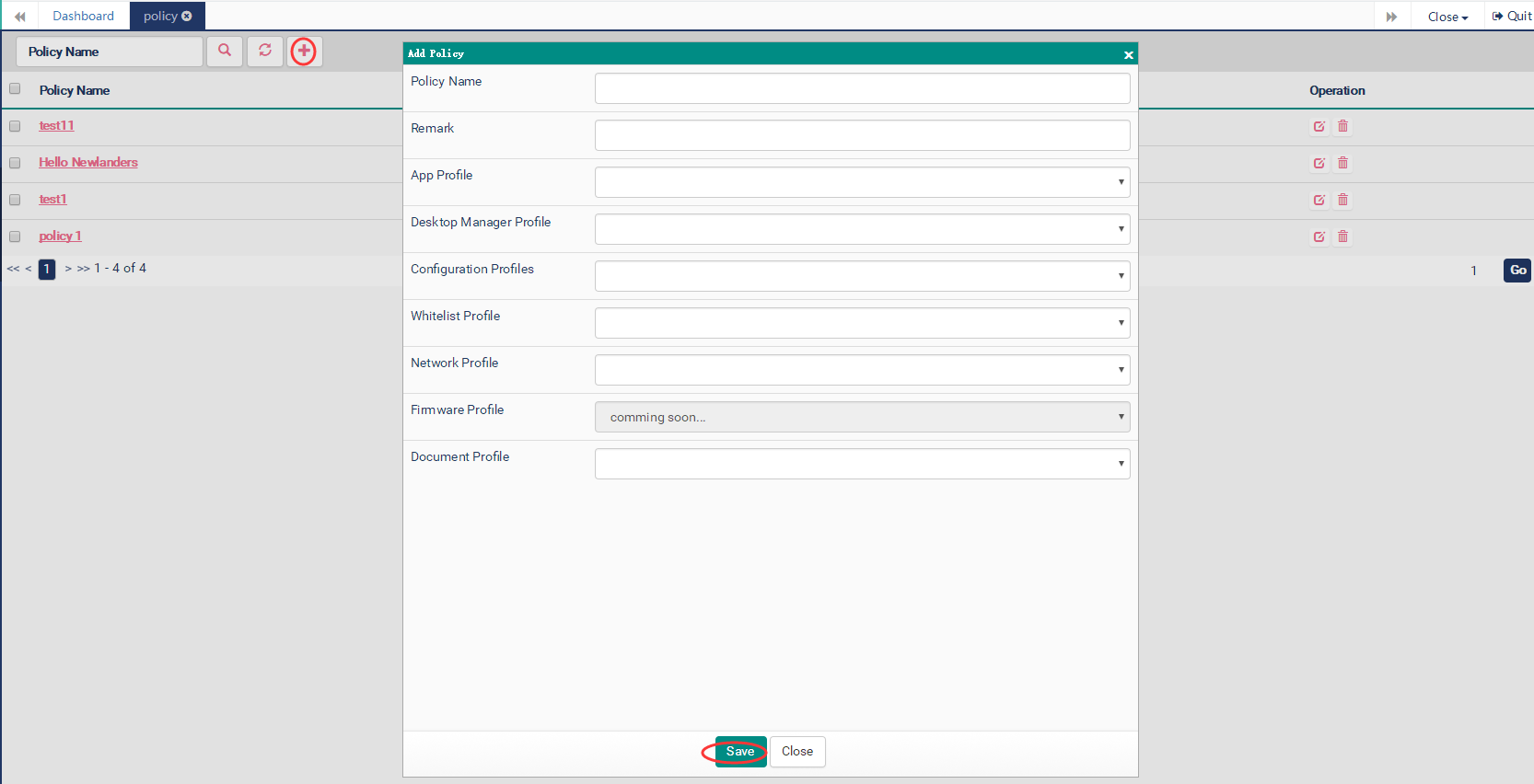
Policy Group Management
Select the specified terminal group and assign the established policies to all terminals in this group.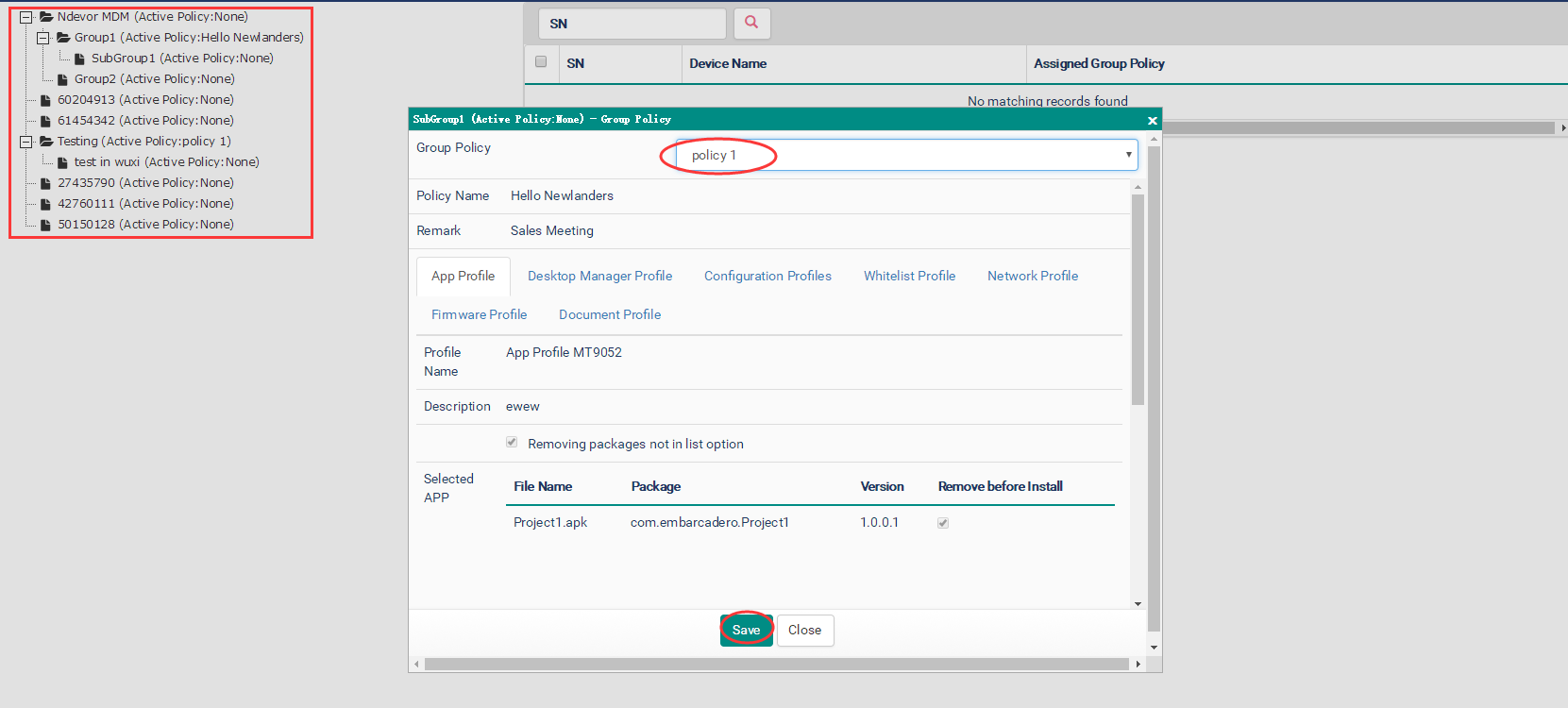
Application
Application Management
Application management can add or delete applications to the management system.
Push Application
Select the terminal device, click "Next"-> select the application and click "Next"-> the default installation method is "Silent Install", and click "Next" to complete the application installation in terminal device. If you do not select "Silent Install", the system only sends the program to the terminal device without installation.
Uninstall Application
Obtain the application list under user mode in the terminal device, and then uninstall or batch uninstall according to the obtained application list.
Desktop Management APP
By the use of desktop management app, you can limit the app display on the device.
- Get all Applications: click to select the device, and tap "Get all Applications", then all applications of the device are listed in the table.
- Send to Desktop Management: after selecting the app, click the send button, then the delivered PDA can only display those apps on the desktop.
- Exit Password: the exit password of desktop management is different every day. In order to make it easier for the administrator to exit the program, here is a quick calculation of the exit password.
Document
Document Management
By the use of the document management system, you can add documents (such as pictures, office documents, PDF documents, etc.) to the management system or delete selected documents.
Push Document
Select "Device" or "Device Group"->select the document and click "Submit"-> then click "Next" and "Send". The device can view the sent document at the document management system of the MDM application.
Note: Before pushing a document, please make sure that the document has been added to the management system through document management.
Network
WIFI Information Management
WIFI information management can add, delete or modifies WIFI information. The WIFI details are stored on the QR code.
WiFi Connect Settings
Edit WIFI information, select "terminal" or "terminal group" and send WIFI connect settings. The device receives the information and automatically connects to WIFI according to settings.
WIFI Whitelist Settings
Select "Terminal" or "Terminal Group", add one or more SSID names, and click "Send". The corresponding device can only select WIFI on the white list for connection. To remove the WIFI whitelist restriction, the device can login the application shortcut configuration -> Whitelist Settings-> WIFI Whitelist and check "Allow All WIFI" to lift the restriction.
Pic(Boot Animation Background)
Select the desired boot animation and send it to the terminal device to change the boot animation.
System Management
Organizational Structure
It is mainly used to view, modify, and delete the information of the organization structure.
Click "Add" to add an organization. The organization can be used to store the IMEI number and correspond to the device in batches.
Click "Edit" or "Delete" to adjust the organization.
Menu Management
Menu management can manage the menu displayed in the MDM.
User Management
The user management interface can be used to manage and view the user’s information & permissions, and it is only visible to the administrator account.
Role Management
Role management is mainly used to set the role of administrator after login, such as external test role or internal test role. The permissions for each button can also be configured in the role management.
Version Management
Version management is mainly used to manage the version of the MDM application. Go to the MDM application system settings-> software upgrade, the terminal device can view the latest version software and upgrade online.
Sendlog
The sendlog is mainly used to record all tasks pushed by the management system to the terminal device.
Chapter 3 -- Ndevor Application Introduction
The Ndevor application functions mainly include "My Push", "Settings".
My Push
My push is used to view the programs, documents, and messages sent by the MDM management system. Programs, documents, and messages sent by the system cannot be deleted. After the device is restored to the factory settings, the installed MDM applications and sent data are removed.
Settings
Settings are mainly used to view server addresses, MDM software upgrades, terminal device system upgrades, and log management.